How to set up advanced backup reports
Setting up advanced backup reports
Follow these steps to configure email reports in UpdraftPlus. By setting up this feature, you can receive notifications about your backups, including any warnings or errors, directly to your inbox.
1. Install and activate UpdraftPlus
If you haven’t already, purchase UpdraftPlus Premium and follow the simple installation instructions.
2. Open the UpdraftPlus plugin
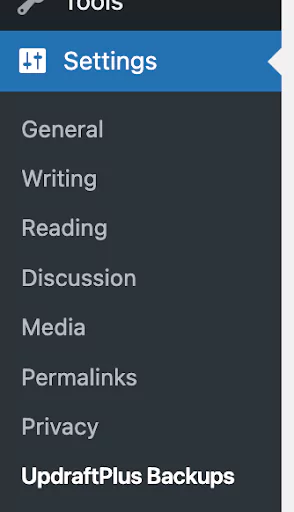
Go to the WordPress ‘Settings’ menu and open ‘UpdraftPlus Backups’.
3. Navigate to the ‘Send reports’ section
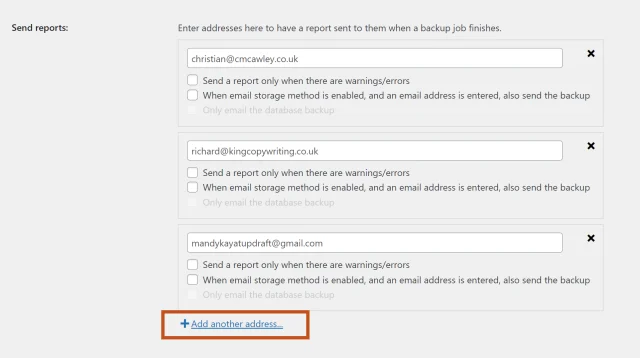
Go to the ‘Settings’ tab within UpdraftPlus. Scroll down to the ‘Send reports’ section

4. Add email addresses and choose what they receive
Click ‘Add another address’ and enter it here.
You can tick ‘Send a report only when there are warnings/errors’ to avoid unnecessary clutter in your inbox.
You can even choose to email the backup files themselves, as well as the report (either the files and the database, or only the database). Though be aware that mail server limits may reduce the likelihood of backups being received if over 10-20MB.
5. Save your changes
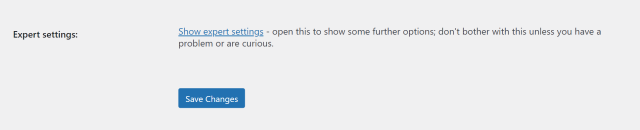
Click ‘Save changes. And that’s it. You’re all done.