What to do if a backup gets stuck on the wp_posts table
In a WordPress installation, all of your page and post information is stored in the wp_posts database table. As your site grows, the database can take up a lot of space.
If you don’t have access to enough memory, you may experience problems with backups.
How do I fix it?
- Optimise your database to reduce the size of the wp_posts table so that less memory is required.
- Increase the amount of available memory (if needed).
Optimise your database
You can achieve this via a WordPress optimization plugin such as WP-Optimize.
Although it’s safe to use, make sure you take a manual backup of your database first.
1. Install and activate the plugin
- Go to Plugins >> Add New Plugin and search for WP-Optimize.
- Click Install Now.
- Click Activate.
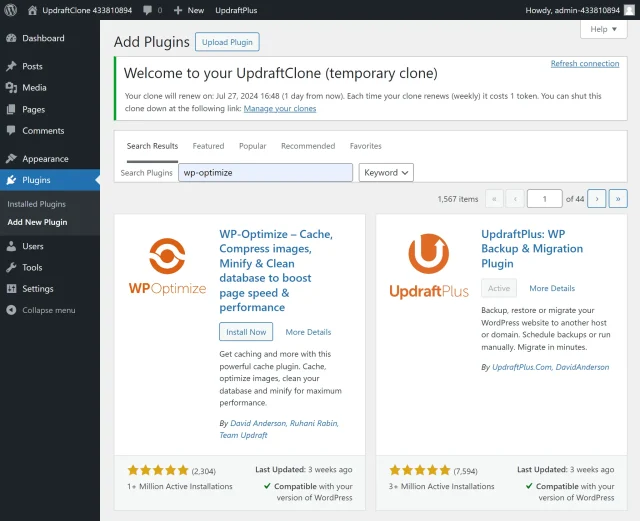
2. Run the database optimisation
- Go to WP-Optimize >> Settings >> Database.
- Click the Run all selected optimizations button.
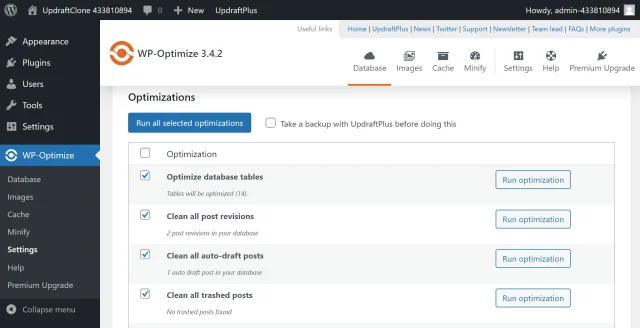
3. Test
- Go to UpdraftPlus >> Backup / Restore.
- Click the Backup Now button.
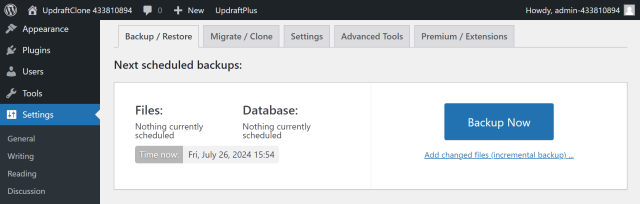
Increase your WordPress memory limit
Is your backup still getting stuck on the wp_posts table? We recommend that you increase the amount of memory that WordPress can use
1. Check PHP memory limit
- Go to Tools >> Site Health >> Info >> Server.
- Note the value for PHP memory limit.
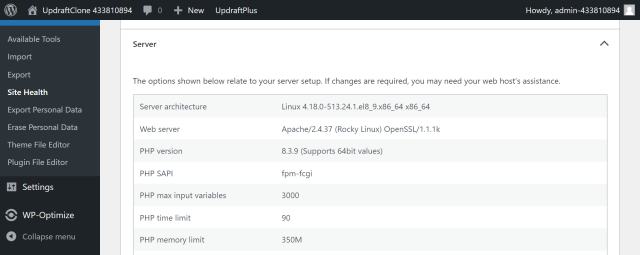
2. Check WordPress memory limit
- Go to Tools >> Site Health >> Info >> WordPress Constants.
- Note the values for
WP_MEMORY_LIMITandWP_MAX_MEMORY_LIMIT.
3. Install Advanced File Manager plugin
- Go to Plugins >> Add New Plugin.
- Search for Advanced File Manager.
- Click Install Now, followed by Activate.
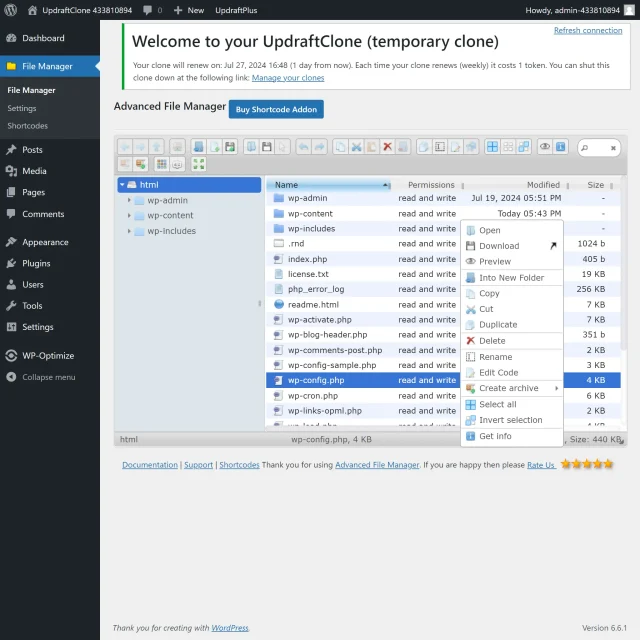
4. Open the config file
- Go to File Manager >> File Manager >> Database.
- Right-click on wp-config.php.
- Select the Edit Code menu item.
5. Check it isn’t already set
- Check that the text
WP_MEMORY_LIMITdoesn’t already exist in the file. - If it does you will need to edit that value rather than adding it again.
Always back up a file before editing.
6. Add the new value or edit the existing one
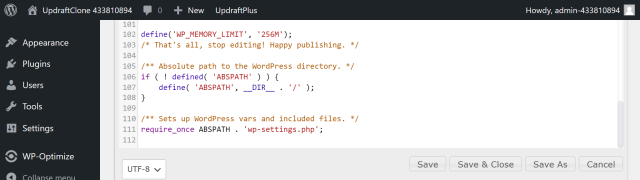
Find the line in your wp-config.php file that says:
/* That's all, stop editing! Happy publishing. */
Just above this line, add the following code and replace 256M with your desired memory limit.
define('WP_MEMORY_LIMIT', '256M');
Note: Don’t exceed your server’s PHP memory limit or the previously mentioned WP_MAX_MEMORY_LIMIT.
Finally, save your changes to the wp-config.php file.
7. Test
Go to UpdraftPlus >> Backup / Restore.
Click the Backup Now button.
I still can’t increase my memory limit
If you’re still having problems with your memory limit, we recommend contacting your hosting provider who will be able to advise you further.