How to manually export a database using phpMyAdmin
Sometimes it’s necessary to manually export your database. For example, if your back up process is not working as expected, and you need to optimise your database first to make it work.
How do I export it?
Most Linux-based hosting services allow you to use a database manager like phpMyAdmin. The screenshots in this guide use phpMyAdmin version 5.2.1.
If you’re using a different version, there might be slight variations in the interface. However, the overall steps for exporting your database should remain the same.
1. Open phpMyAdmin
Login to your hosts administration panel and open phpMyAdmin.
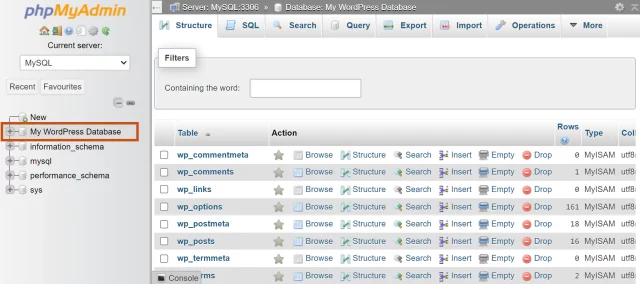
2. Locate your database
Click the name of your database from the menu on the left-hand side.
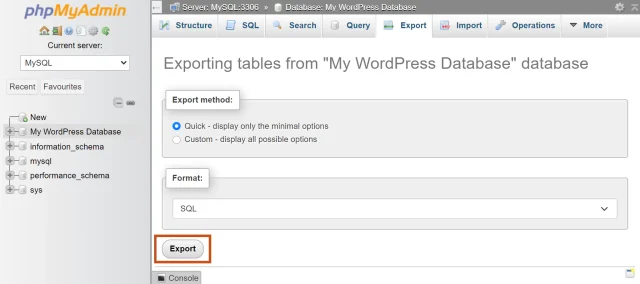
3. Export the SQL file
- Click the Export tab
- Choose the Quick export method for a simple export or Custom for advanced options like selecting specific tables or output format
- Click the Export button
- The SQL file will be downloaded to your computer’s default download location.