How to download a single folder from a backup
Currently, UpdraftPlus only allows you to download individual files from backups. To download a folder, you’ll need to first extract the backup directly on your cloud storage or web host.
What are the steps?
The following steps can be adapted for most cloud storage providers and web hosting file managers.
1. Ensure you have sufficient space
The extracted files can be significantly larger than the original compressed file, often up to five times the size. However, if your storage provider or file manager allows you to extract only the specific folder you need, you can significantly reduce the required space.
2. Locate the backup
- Sign in to your cloud storage or file manager.
- Navigate to the folder containing your backup file.
- Create a temporary folder to avoid cluttering your folder.
3. Extract the backup
- Right-click on the backup file and select the ‘Unzip’ or ‘Extract’ option.
- Some providers, like Google Drive, allow you to extract specific folders within the backup.
- Extract your backup into the temporary folder you created.
If there’s no option to extract to a specific folder
- Extract the backup to the current folder.
- Move the extracted files and folders to the temporary folder manually.
4. Download the folder
- Once the backup is extracted, locate the folder you want to download.
- Right-click on the folder and select the ‘Download’ option.
- Remove the temporary folder.
Note: The exact steps and terminology might vary depending on the specific platform you’re using.
How can I download individual files?
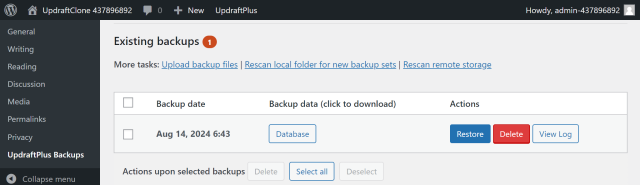
1. Click the backup
On your website, go to Backup / Restore >> Existing backups and click the backup that contains the file you want.
2. Locate the file
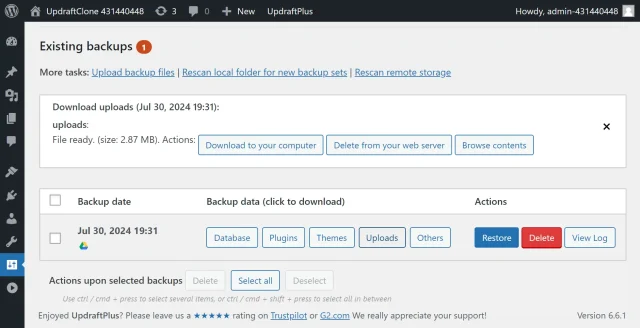
Click the Browse contents button, navigate to the file you wish to download.
3. Download
Click the file name followed by the download link.