How to back up to multiple storage locations
If you’re familiar with UpdraftPlus, you’ll find backing up to more than one location is as simple as choosing more than one location under the ‘Settings’ tab. Alternatively, read on for a more detailed step-by-step guide.
1. Install and Activate UpdraftPlus
If you haven’t already, purchase UpdraftPlus Premium and follow the simple installation instructions.
2. Open the UpdraftPlus plugin
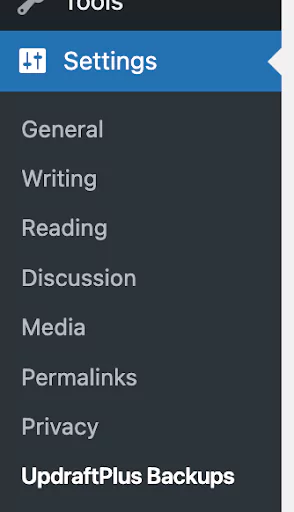
Go to the WordPress ‘Settings’ menu and open ‘UpdraftPlus Backups’.
3. Choose backup locations
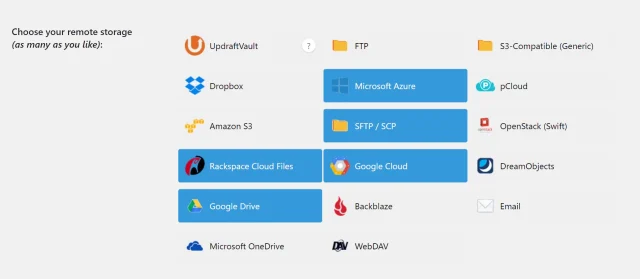
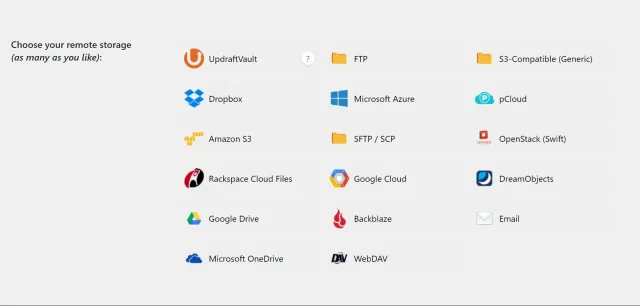
In the ‘Settings’ tab, scroll down to ‘Choose your remote storage (as many as you like)’
You can select multiple options for maximum redundancy.
4. Configure each backup location
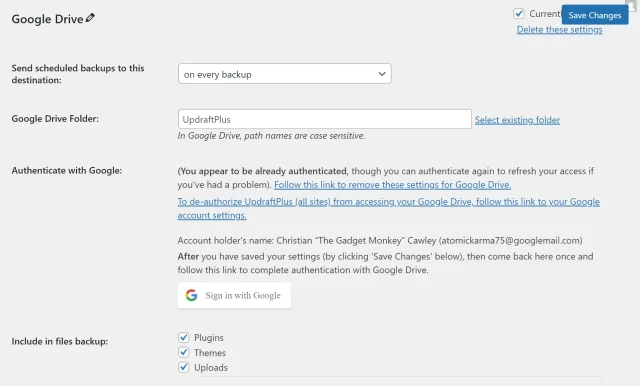
For each selected backup location, follow the prompts to connect UpdraftPlus to that location. For instance, if you’re backing up to Google Drive, you’ll need to authenticate your Google account.
5. Perform manual backups or schedule backups
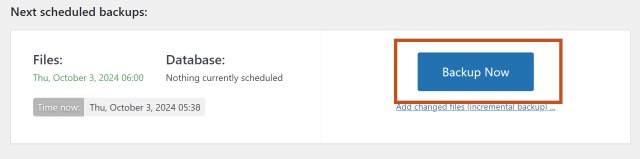
Initiate a manual backup by clicking the ‘Backup Now’ button in the ‘Backup / Restore’ tab. Alternatively, set up scheduled backups in the same ‘Settings’ tab as before.
6. Monitor and restore backups
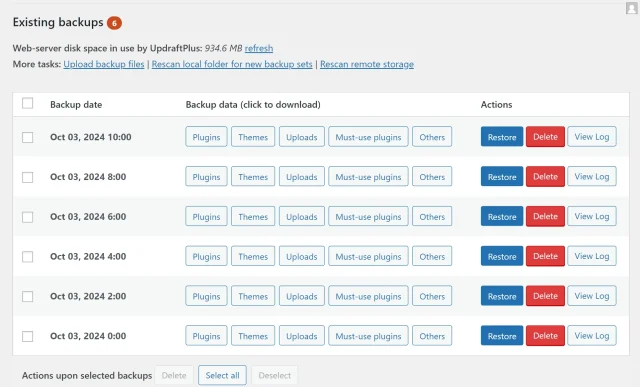
Monitor the status of your backups within the ‘Existing backups’ section of the ‘Backup / restore’ tab