Can I import backups from other plugins?
UpdraftPlus Premium can import backups created by several other backup plugins.
When you attempt to import a third-party backups, UpdraftPlus will attempt to recognise it based upon the filename. If you have renamed your backup files, or changed the default pattern used by the plugin, then UpdraftPlus might not recognise it. To fix this, all you need to do is rename the backup file to match the pattern that UpdraftPlus is expecting.
Backups created by BackupWordPress
The backup filename can start with anything, but needs to end with a date in this format: YYYY-MM-DD-HH-MM-SS.zip. Before that needs to come either “-complete-” or “-database-“, depending on what kind of backup it is.
Example filename: example-com-default-1-complete-2014-03-10-11-44-57.zip
The default filename created by this plugin matches this format – so you should only need to do anything if you have altered it.
Backups created by Simple Backup
The backup filename must start with either “backup_” (files) or “db_backup” (database), and needs to continue with a date in this format: YYYY-MM-DD_HHMMSS and then end with either .sql.gz (database) or .tar, .tar.gz, .tar.bz2 or .zip (files).
Example filename (database): db_backup_2014-03-15_133344.sql.gz
Example filename (files): backup-2014-03-15-133344.zip
The default filenames created by this plugin match this format – so you should only need to do anything if you have altered them.
Backups created by BackWPUp
The backup filename must start with “backwpup_”, and then continue with any hexadecimal, an underscore, and then YYYY-MM-DD_HH-MM-SS, and then finish with .tar, .tar.gz, .tar.bz2 or .zip.
Example filename: backwpup_430908_2014-03-30_11-41-05.tar
The default filenames created by this plugin match this format – so you should only need to do anything if you have altered them.
Generic SQL database backups
You can also restore a generic database backup made with any tool, as long as it produces valid SQL output.
The backup filename must end with .sql, or .sql.gz (gzip-compressed) or .sql.bz2 (bzip2-compressed).
Backups created by WordPress Backup To Dropbox
To obtain a suitable zip file to import to UpdraftPlus, you will need to create one (since this plugin mirrors all your files, rather than creating a zip itself). The easiest way to do this is to log in to your Dropbox account at the Dropbox website (www.dropbox.com), go to the folder which contains the WordPress Backup To Dropbox backup, and use the “Download” button and “Download as zip” option. Dropbox will then create a zip for you.
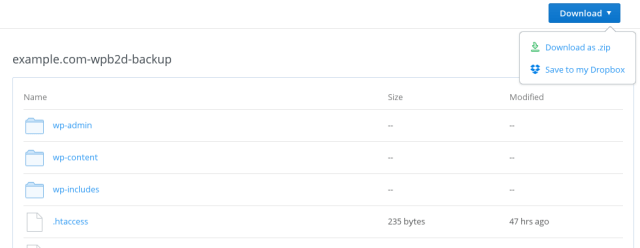
The backup filename must contain wpb2d anywhere, and end in .zip
Example filename: mywebsite-wpb2d-June2014.zip
The default filename created by your Dropbox download will probably not match this pattern, so you are likely to need to rename the file before uploading.