How to anonymise personal data in WordPress backups
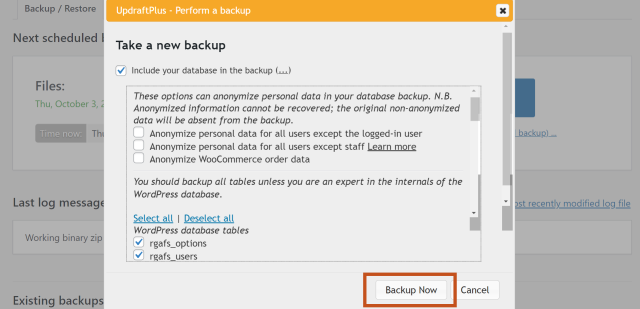
Follow these steps to automatically anonymise any personal data found in your WordPress database tables such as names and email addresses.
1. Install and activate UpdraftPlus
If you haven’t already, purchase and install UpdraftPlus Premium.
2. Open UpdraftPlus settings
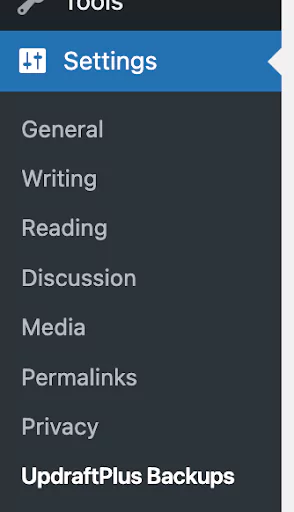
Go to the WordPress ‘Settings’ menu and open ‘UpdraftPlus Backups’.
3. Go to the ‘Backup / Restore’ tab

4. Create a manual backup
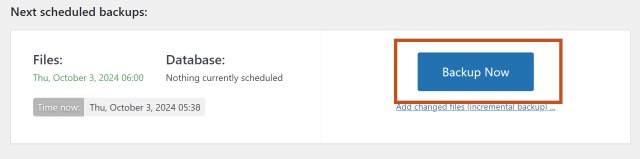
Click the blue ‘Backup Now’ button at the top of this page.
5. Choose your database backup options
Click the more button (…) next to the ‘Include your database in the backup’ checkbox.
Then choose which data you would like to anonymise.
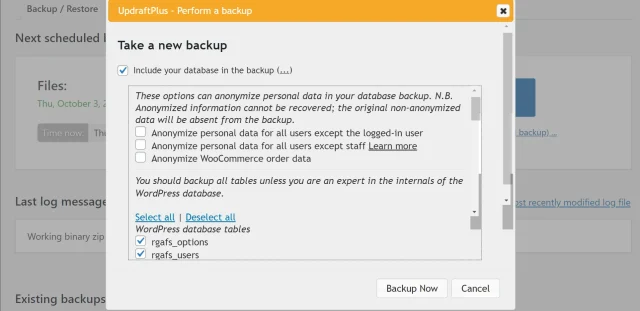
6. Click the ‘Backup Now’ button
This will start the backup process with your anonymous data.