How to restore backups from other WordPress backup plugins
1. Install and activate UpdraftPlus
If you haven’t already, purchase UpdraftPlus Premium and follow the simple installation instructions.
2. Open the UpdraftPlus plugin
Go to the WordPress ‘Settings’ menu and open ‘UpdraftPlus Backups’.
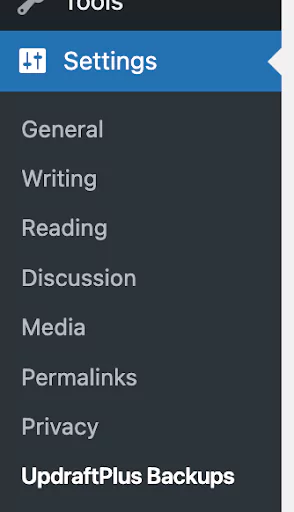
3. Download backups from your previous plugin:
Download the backup file from the backup plugin you were using before switching to UpdraftPlus.
If you were using the BackupWordPress plugin, follow our guide on how to restore a ‘BackupWordPress’ backup using UpdraftPlus Premium.
4. Go to the ‘Backup / Restore’ tab
Navigate to the UpdraftPlus settings in your WordPress dashboard.
Click on the ‘Backup/Restore’ tab.

5. Upload your backup file
Scroll down to the ‘Existing backups’ section and click the ‘Upload backup files’ button.
Select the backup file from your computer. You can upload zip files or other supported formats.
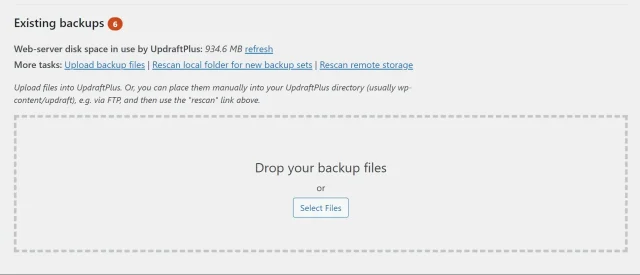
6. Scan for backup files
After uploading, UpdraftPlus will scan the file and recognize the backup format.
7. Restore your backup
Click the ‘Restore’ button to begin the restoration process. Follow the on-screen prompts to complete the restoration.