How to set up additional backup retention rules
By adding additional retention rules, all backups that are older than a certain date will be grouped together and pruned until there is only one backup for each time period. The additional retention rules run after the normal backup pruning, and are run in the order they were created. Additional retention rules also include automatic backups when evaluating which backups to prune.
Follow the instructions below or watch our video on how to add additional retention rules when backing up your WordPress sites with UpdraftPlus.
How to set up additional retention rules for UpdraftPlus backups
First, you will need to install and activate UpdraftPlus Premium.
To set it up, first go to: WP Admin->Settings->UpdraftPlus Backups->Settings tab
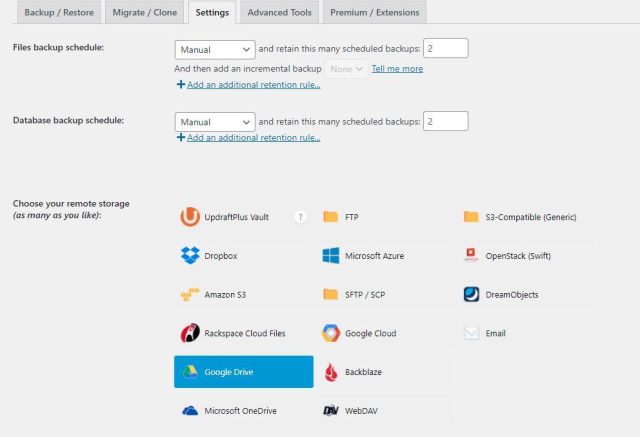
Under the Files/Database backup schedule settings, find the ‘Add an additional retention rule’ link
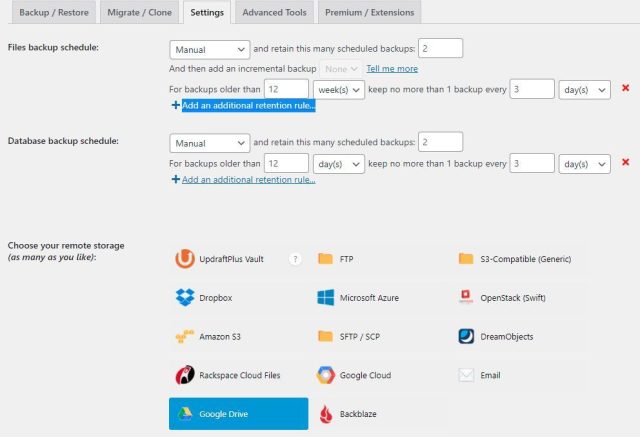
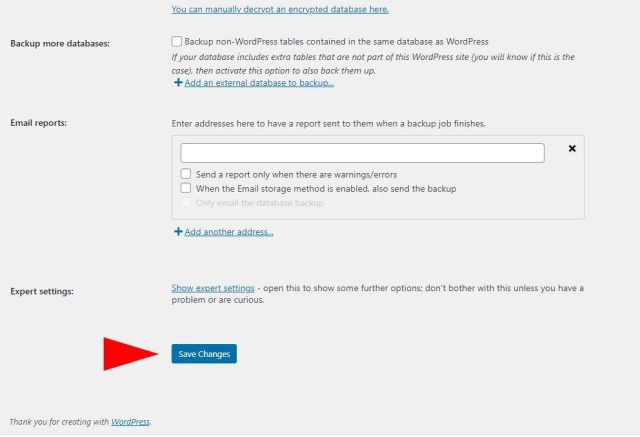
Set your additional retention rule/s and press the ‘Save Changes’ button at the bottom of the page.
Set how old the backups to be considered should be and how many backups to keep. Once this is setup, all backups older than your selected time period will be grouped together and pruned, until there is only one backup for each time period.