Upgrade from free to premium UpdraftPlus
Step 1: Purchase UpdraftPlus Premium
To install UpdraftPlus Premium, you first need to purchase a license. Head over to the UpdraftPlus pricing page to choose the package that suits you.
Step 2: Download UpdraftPlus Premium
Once you’ve made your purchase, head over to your account, and click ‘UpdraftPlus Premium’ in the downloads section.
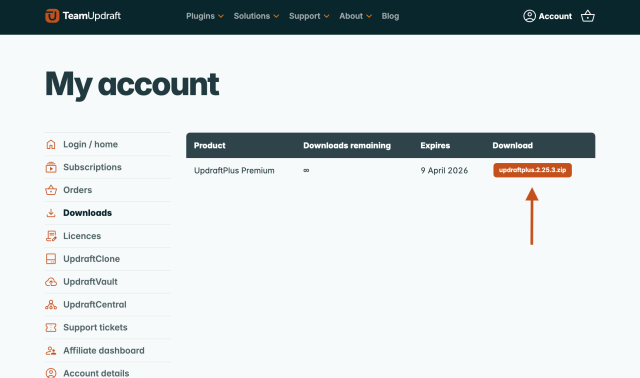
Save the plugin file to your computer. If you want some assurances before you download, check out the Google Safe Browsing page for TeamUpdraft.
Mac users: If you’re using Safari, your Mac may automatically unpack the ZIP file. This is not desirable for WordPress plugins. To prevent this:
- Go to Safari » Preferences
- Uncheck ‘Open safe files after downloading’
Step 3: Uninstall the free version (if installed)
If you already have the free version of UpdraftPlus installed, you need to remove it before installing the premium version.
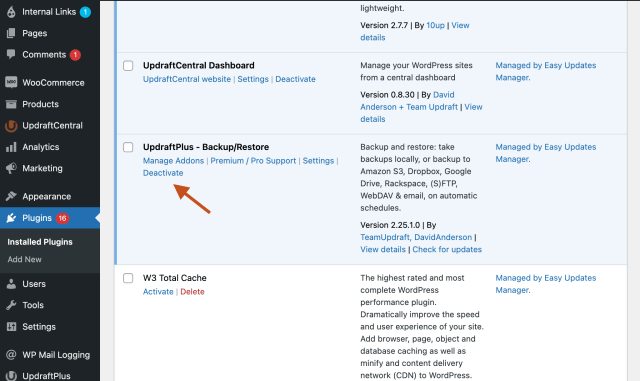
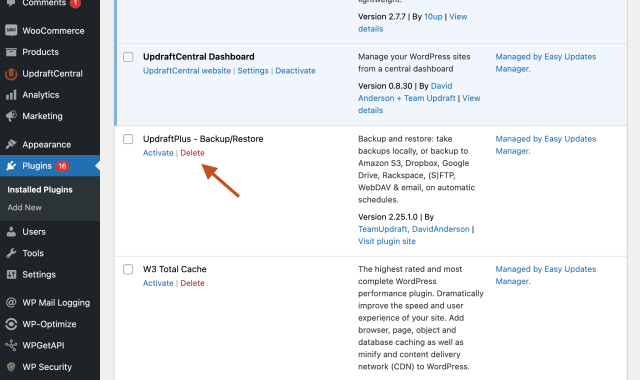
- In your WordPress dashboard, go to Plugins.
- Find UpdraftPlus in the list of plugins.
- Click ‘Deactivate’, then ‘Delete’.
Step 4: Upload and activate UpdraftPlus Premium
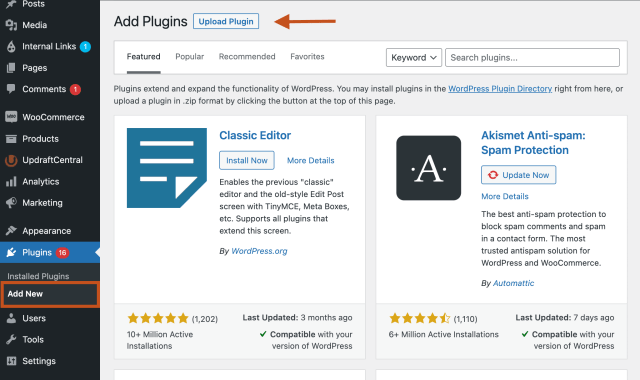
- In WordPress, go to Plugins » Add New.
- Click ‘Upload Plugin’, then ‘Choose File’.
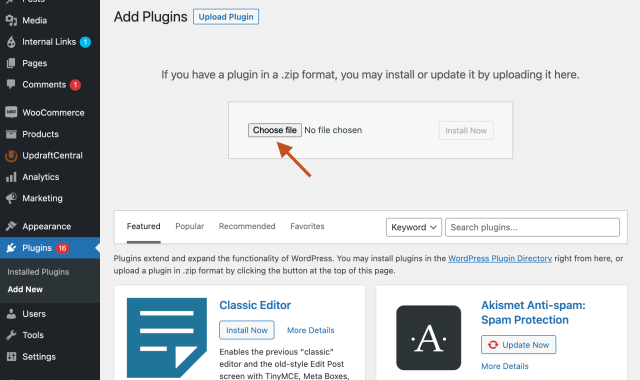
- Select the UpdraftPlus Premium ZIP file you downloaded.
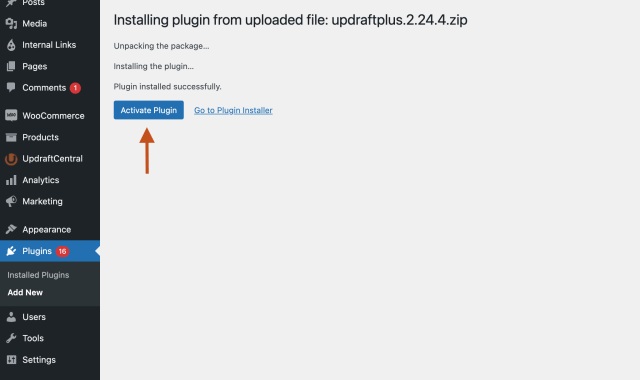
- Click ‘Install Now’, then ‘Activate Plugin’.
If your hosting provider has a small maximum upload limit, WordPress may say the file is too large. In this case, you can install the Upload Larger Plugins plugin from the WordPress directory, which allows you to upload files above the standard PHP upload limit.
Step 5: Open UpdraftPlus in WordPress
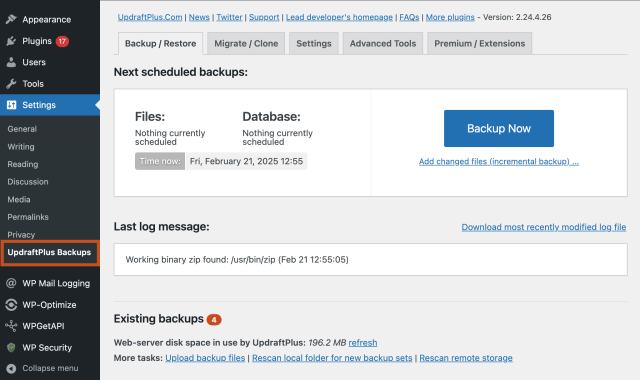
In the WordPress menu on the left, go to UpdraftPlus Backups.
Step 6: Login and activate your account
To get plugin updates, you’ll need to log into your TeamUpdraft account from the ‘Premium / Extensions’ tab in UpdraftPlus to connect your licence.
- Click into the ‘Premium / Extensions’ tab.
- Log in using the UpdraftPlus account details you purchased with.
- If you are already logged in, click the link to refresh the connection.
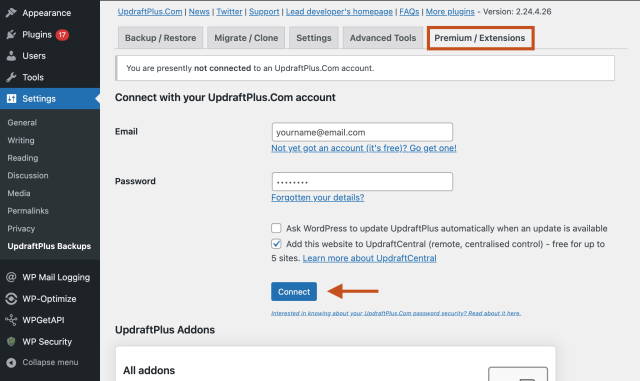
- Find your purchase and click ‘Activate it on this site’.
Need help?
Premium customers can get support via email. Just log a support query via our customer support form. Our team of experienced developers will email you back. More than 90% of tickets are responded to within 24 hours!