How to use the UpdraftPlus Google Drive app
As of UpdraftPlus free version 1.13.6 and premium version 2.13.6 we now have an offical UpdraftPlus Google Drive app. This makes setting up Google Drive for remote backups easy.
Looking for a complete walkthrough? Check out our guide on how to backup WordPress to Google Drive automatically.
How to add Google Drive to your UpdraftPlus account settings
To setup Google Drive using our app on a new WordPress install simply click the Google Drive option as a remote storage option and then save your settings.
Note: if this is on an existing install with Google Drive already setup then you will want to clear your saved Google Drive settings, the easiest way to do this is to use the link in your Google Drive settings.

After you have saved you should be prompted to press a link to complete your authorization.
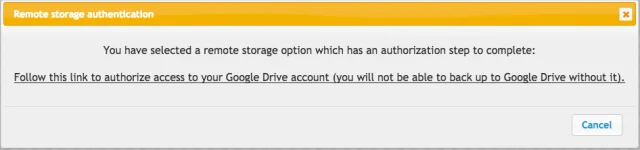
Follow the link and you should be asked to choose your Google Account/Signin to your Google Account and then be asked to grant permission to the UpdraftPlus app once you press allow you should be taken to the following screen.
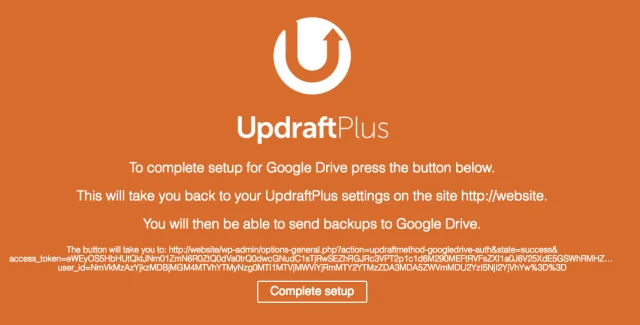
Here you just simply need to press the complete setup button and you will be taken back to your WordPress website.
You should now be authorised with Google Drive and can now backup your WordPress install.