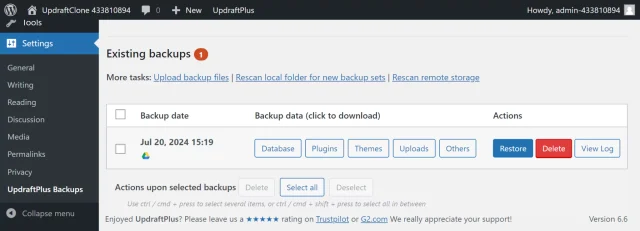
How to back up WordPress to a Google Drive subfolder
Back up to a Google Drive subfolder
Follow these steps to back up to a Google Drive subfolder instead of the default ‘UpdraftPlus’ folder.
1. Install and Activate UpdraftPlus
If you haven’t already, purchase, install and activate UpdraftPlus Premium.
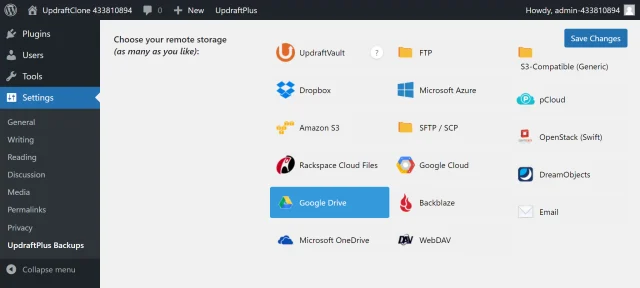
2. Select Google Drive
Click Google Drive on the UpdraftPlus >> Settings tab.
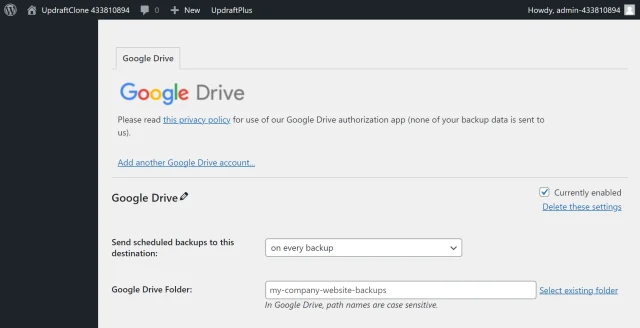
3. Enter folder name
Scroll down, enter your folder name and click Save Changes.
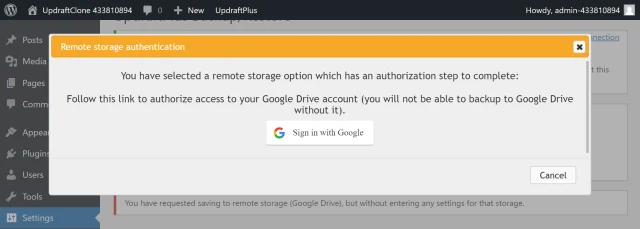
4. Sign in with Google
Click Sign in with Google to start the authentication process.
5. Choose an account
Click the name of your Google account from the list.
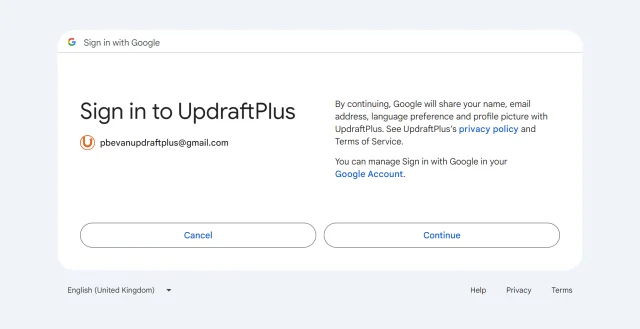
6. Sign into UpdraftPlus
Click Continue.
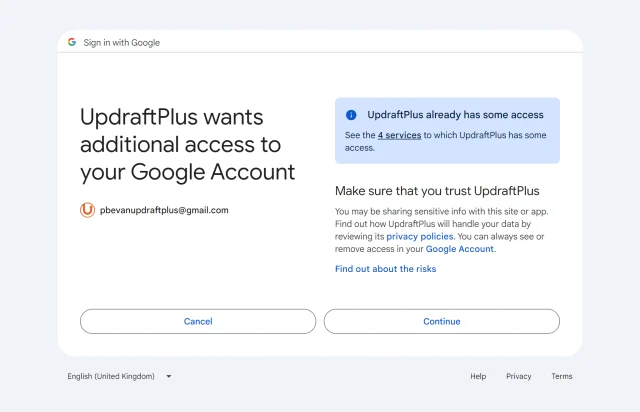
7. Allow access
Click Continue.
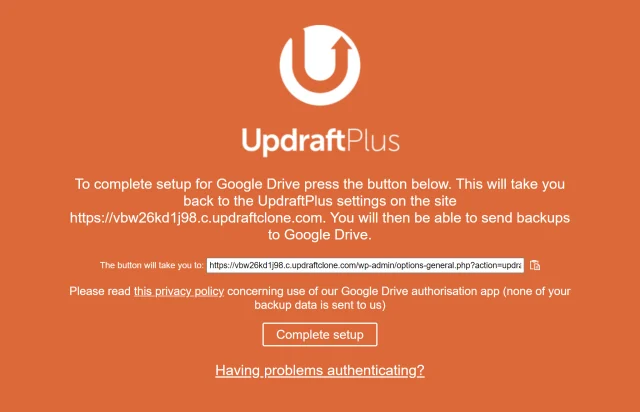
8. Complete setup
Click Complete setup.
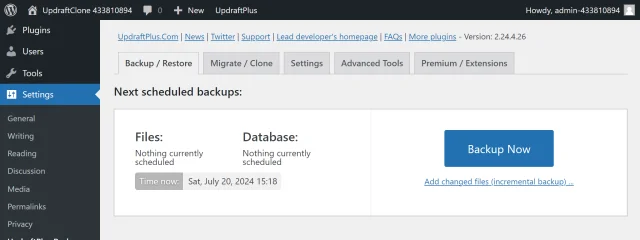
9. Create a test backup
Click Backup Now on the UpdraftPlus >> Backup / Restore tab.
10. Start the back up process
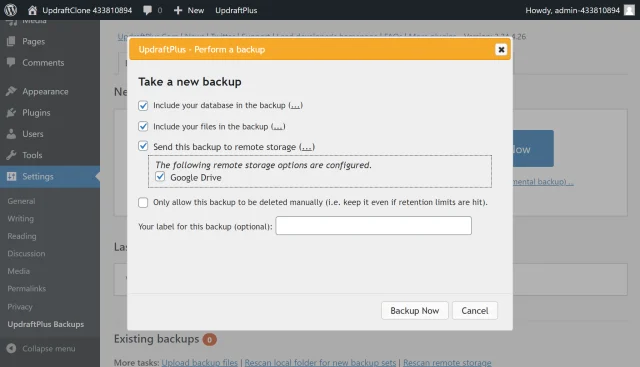
Check the options for Send this backup to remote storage and Google Drive, then click Backup Now.
11. That’s it
Your backup is secured on Google Drive and is accessible from UpdraftPlus >> Backup / Restore >> Existing backups.