How to update to the UpdraftPlus development version
If you’ve been asked to update to the development version (e.g. to test out a new feature, or fix – or if you’re just curious and like being at the cutting edge), then here’s how to do it.
All your settings will be remembered – you won’t need to re-create them. N.B. The version number in the development version may or may not be the same as the current release version; there is no particular rule about what it will be.
1. De-install your existing install of UpdraftPlus
Go to the “Installed Plugins” page on your WordPress dashboard.
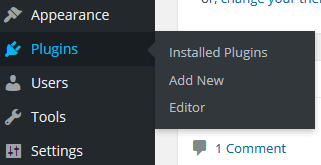
Follow the link to “Deactivate”.

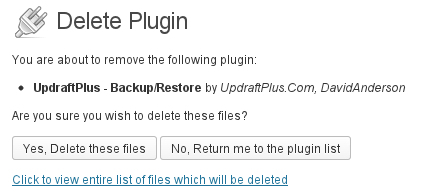
Then scroll back to find the same place again, and this time click “Delete”. Confirm your choice.

2. Download the development version
Just download the zip file from this link to your computer.
3. Install the development version into WordPress
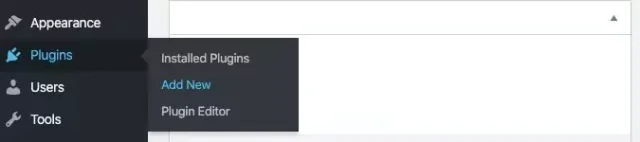
Go to WordPress’s plugin installer, and install the new version (i.e. upload the zip file you just downloaded in the previous step).
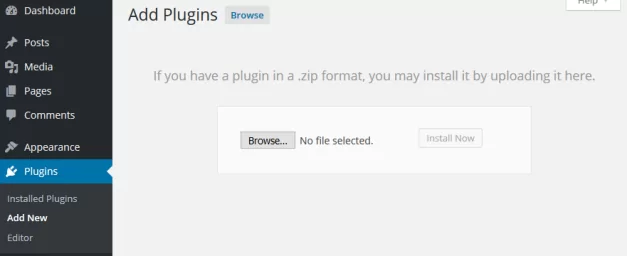
Activate it, and you’re done!