How do I open my browser developer tools?
When debugging UpdraftPlus, you will sometimes be told to open the JavaScript Console or Developer Tools.
Here is a quick guide on how to access this console on the most common browsers.
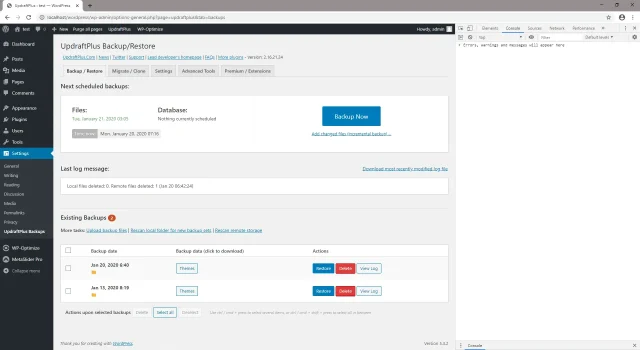
Google Chrome
- Navigate to the desired page.
- Press CTRL + SHIFT + J ( CMD + OPT + J on a Mac ) or F12.
- A Developer Tools sub-window should appear.
- In the Developer Tools window, click the ‘Console’ tab.
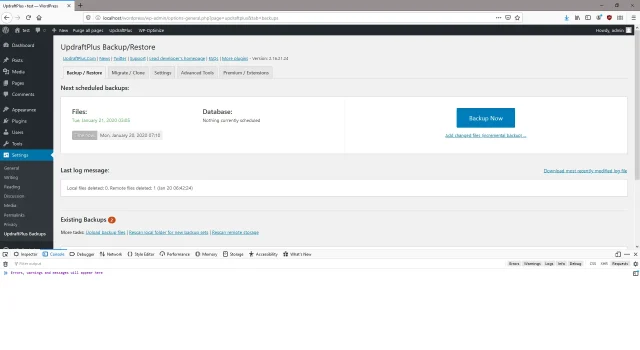
Mozilla Firefox
- Navigate to the desired page.
- Press CTRL+SHIFT+J or F12.
- A Developer Tools sub-window should appear.
- In the Developer Tools window, click the ‘Console’ tab.
- Reload the current page.
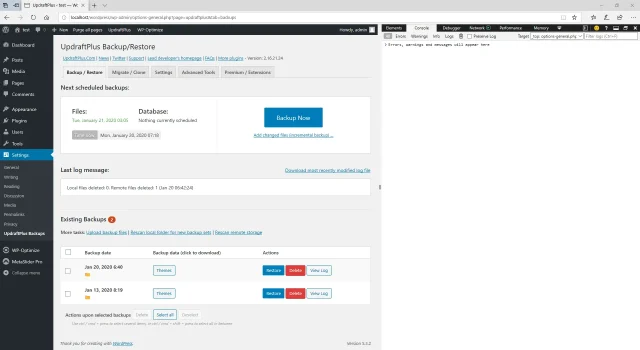
Internet Explorer / Edge
- Navigate to the desired page.
- Press CTRL+SHIFT+J or F12.
- A Developer Tools sub-window should appear.
- In the Developer Tools window, click the ‘Console’ tab.
- Reload the current page.
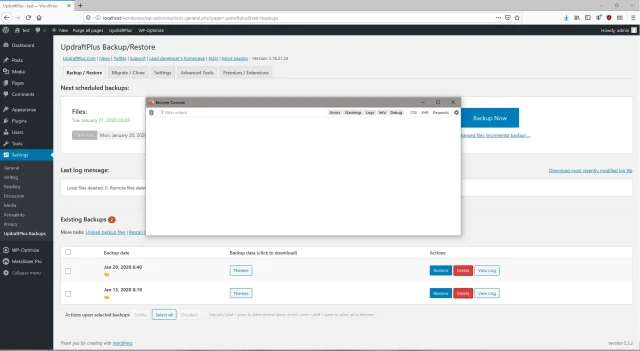
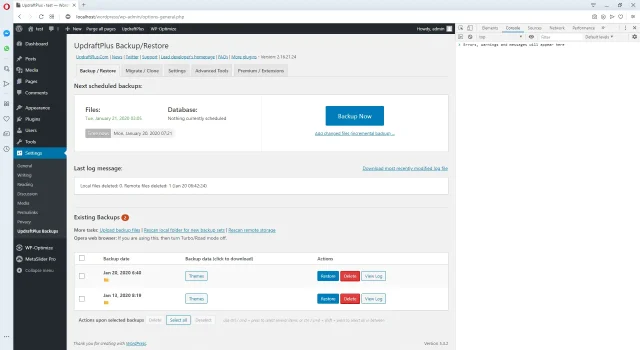
Opera
- Navigate to the desired page.
- Press CTRL+SHIFT+J (Cmd+Opt+J on a Mac).
- A Developer Tools sub-window should appear.
- In the Developer Tools window, click the ‘Console’ tab.
Safari
- Open Safari’s preferences and open the Advanced pane.
- Enable the ‘Show Develop menu in menu bar’ setting, and close the preferences pane.
- Press CMD+OPT+C.
- A Developer Tools window should appear.
- In the Developer Tools window, click the ‘Console’ tab.