Blocking Countries with AIOS Premium
Have you missed one of AIOS’s top features?
All-In-One Security has a very useful feature that you might not know about. The feature is called country blocking, and it’s available to all premium AIOS users. Not sure why it’s so important? Let’s dive into it.
Free features:
- Login security: Guards against repeated login attempts
- User account & login security: Enhances user authentication processes.
- Firewall and file protection: Blocks malicious requests and potential threats.
- Content protection: Helps prevent spam and maintain your search engine rankings.
- Two-factor authentication (TFA): Sends users a one-time code from a device to log in.
Premium Features:
- Malware scanning: Prevents malware from harming your content and search rankings.
- Smart 404 blocking: Blocks the IP addresses of bots and hackers if they cause too many 404 errors.
- Country blocking: Restricts access to your website from specific nations, reducing potential threats.
- Premium support: Unlimited email support with guaranteed response times.
Get a full list of AIOS features here.
The significance of country blocking
AIOS’s country blocking feature lets you stop certain countries from accessing your site. Most malicious attacks come from a handful of countries, so it’s possible to prevent most attacks with this tool. Watch our tutorial video for a quick overview of how to set this up:
How to set up Country Blocking on All-In-One-Security (AIOS)
Key features of AIOS’s country blocking
- Controlled Access: Beyond just blocking countries, AIOS offers the flexibility to block access to specific pages or sections of your website. This ensures that only the desired audience can access certain content.
- IP Whitelisting: For instances where access is required from blocked countries, AIOS allows specific IP addresses to be whitelisted, ensuring uninterrupted access for those users.
- Redirect Blocked Visitors: you’re not just stopping visitors from blocked countries; you can also set a specific URL to redirect them to. You can then provide users with an explanation, or you could send them to their country-specific website. You can even send them back to their localhost by entering http://127.0.0.1
- Selective Page Blocking: Instead of blocking the entire website, you can choose to block specific pages.
How to access AIOS’s country blocking feature
- Log in to your WordPress dashboard.
- On the left sidebar, click on ‘Plugins’ to open the plugins menu.
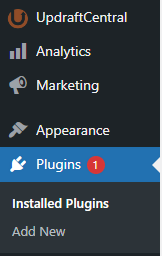
3. Navigate to the ‘Settings’ link underneath the ‘All In One WP Security’ heading.

4. On the left sidebar, find and click on the ‘Country Blocking’ option.
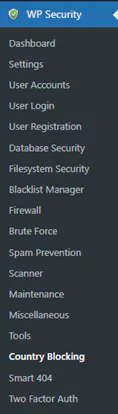
5. You are now in the country blocking settings. Here, you can configure which countries to block, set specific URLs for redirection, whitelist IP addresses, and choose specific pages to block.
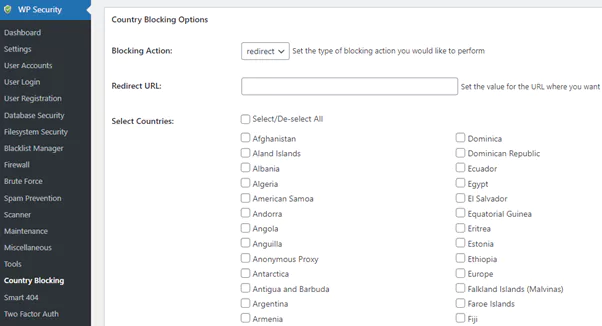
Get the premium version of All-In-One Security to access the country blocking feature.
How do I whitelist IP addresses or IP ranges from countries I have blocked?
There may be times when you wish to block most visitors from a country but allow certain IP addresses or IP ranges from that particular country.
How Whitelisting Works in AIOS
This is a premium feature of AIOS and it allows you to whitelist any IP addresses or IP ranges even if they are part of a blocked country.
For example, if a visitor originating from a blocked country tries to view your site or page and their IP address is configured in the country blocking whitelist settings, then they will be allowed to view your content. Any other visitor from that country who has an IP address not matching those in the whitelist will be blocked.