Basic Configuration
How to export & import your AIOS security settings
All in One WP Security allows you to export and import the security settings. This can be handy if you wanted to save time by applying the settings from one site to another site.
Before importing, it is your responsibility to know what settings you are trying to import. Importing settings blindly can cause you to be locked out of your site.
For Example: If a settings item relies on the domain URL then it may not work correctly when imported into a site with a different domain.
Exporting your security settings
To export your All in One WP Security settings:
- Navigate to WP Admin->WP Security->Settings, and open the Import/Export tab
- Click the ‘Export AIOWPS Settings’ button
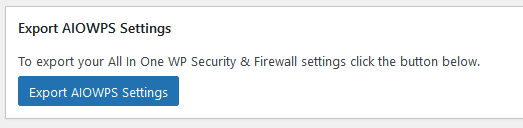
- Click ‘SAVE’ when prompted
Import your security settings
There are two methods to import the settings:
- Navigate to WP Admin->WP Security->Settings, and open the Import/Export tab
- Method 1: Click the ‘Select your Import Settings File’ button
- Drag and Drop or select your settings file in the pop-up
- After the file has uploaded, click ‘Import AIOWPS Settings’
- Method 2: Open your settings file in a text editor
- Copy the contents of the file
- Paste the contents into the ‘Copy/Paste Import Data’ text field
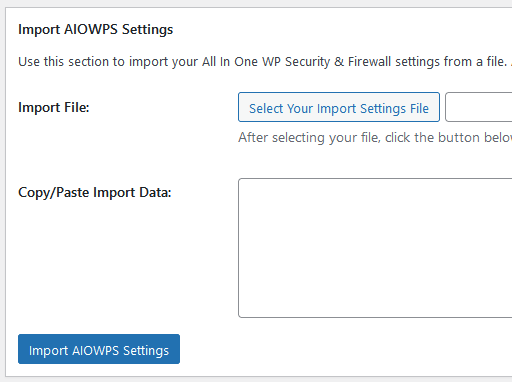
- Click the ‘Import AIOWPS Settings’ button
How to restore the wp-config.php file using AIOS.
The wp-config.php file is one of the most important files in your WordPress installation. This file contains the basic configuration for your site, including database credentials, password salts and keys, debug settings and filepath information. It can also be used to define custom configuration for the site, plugins and themes.
As such, keeping the contents of this file safe is essential to the function of the site. The All-In-One WordPress security plugin provides a simple way to backup and restore the wp-config.php file (and .htaccess file) from within the WordPress dashboard
How to backup the wp-config file from the All in One WP Security Plugin ‘Settings’ page
- From the left side menu in the WordPress dashboard near the bottom of the screen, hover over the WP Security menu, and click on Settings if you aren’t already on that page. On this page you have the options for backing up, restoring, and viewing the contents of the wp-config file.
- Click on the wp-config.php File tab at the top of the screen.

Click the Backup wp-config.php File button near the top of the page. A download prompt will appear, asking you to open or save a file named wp-config-backup.txt. Save the file to your computer in a safe location.

Restoring the file is just as simple. Follow the quick steps below:
How to restore the wp-config file from the All in One WP Security Plugin ‘Settings’ page
- Hover over the WP Security menu, and click on Settings if you aren’t already on that page.
- Click on the wp-config.php File tab at the top of the screen.
- Click the Select Your wp-config File button, then click Select Files.
- Locate the backed up “wp-config-backup.txt” file on your computer and double-click it.
- Scroll down and click the Insert into Post button.
- Click the Restore wp-config File button. A message will appear near the top with a confirmation message.
How to restore the wp-config file via FTP
If you were able to successfully backup your WordPress installation’s wp-config file but can’t gain access to the dashboard to restore the file, you can follow the steps below to do so.
- First, locate the “wp-config-backup.txt” file on your computer and open it in a text editor.
- Use the text editor’s File >> Save As… command and make sure Save as type: is set to “All Files (*.*).”
- In the File name: box type: “wp-config.php” (not including the quotes). Then click the Save button.
- Open up your FTP software and connect to the server that holds the WordPress install files for the site that you want to restore the wp-config file on.
- Transfer the “wp-config.php” file from your computer to the root folder of the WordPress site. Overwrite the file on the server when prompted.