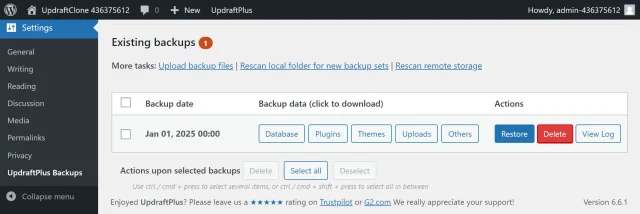
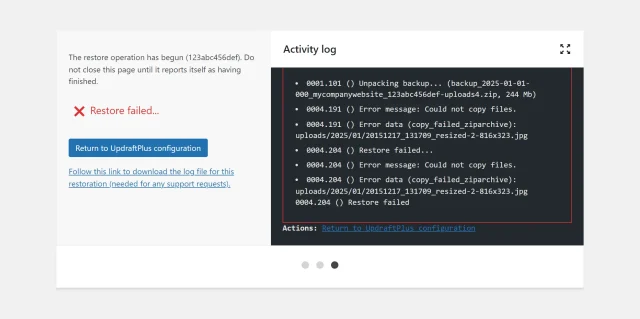
Why you’re getting an error when restoring the uploads zip
This issue can occur if there is not enough free space on your website to complete the restoration. Since the uploads folder is typically the largest, the uploads zip file is often the root cause.
1. Check the log file
You can find the restoration log file in the wp-content / updraft folder. Access the folder by installing a plugin like Advanced File Manager on your website.
Your log file may say something like this:
Free space on disk containing Updraft's temporary directory: 135984.9 MB / Free disk space in account: 121.8 MB (95.9 % used)
2. Make space
Increase the amount of storage space you have available on your hosting account or remove files that you no longer need.
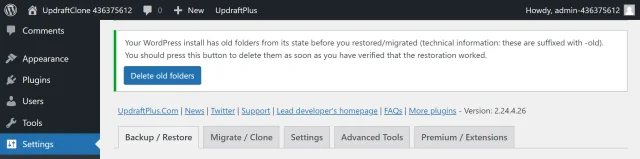
3. Delete the old folders
Click the Delete old folders button from UpdraftPlus >> Backup / Restore before trying a new restoration.
4. Retry the restoration
- Go back to UpdraftPlus >> Backup / Restore >> Existing backups.
- Click the Restore button next to your chosen backup.