How to back up WordPress to Microsoft OneDrive
Connecting UpdraftPlus to your Microsoft OneDrive storage is quick and simple. The following guide will walk you through the process step by step.
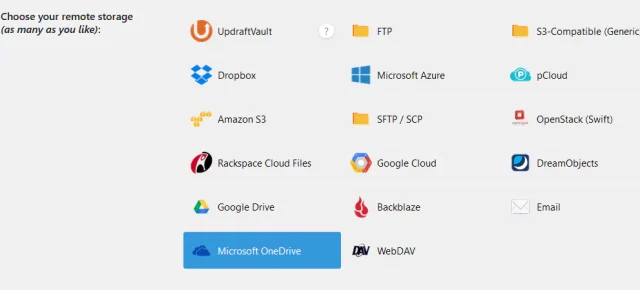
First, go to your UpdraftPlus dashboard and select the settings tab. In the section ‘Choose your remote storage’, select the Microsoft OneDrive option.
Next, in the OneDrive folder field enter the name of the folder you would like to save your backups to. Once you’ve entered the details scroll down the page and click the ‘Save Changes’ button.
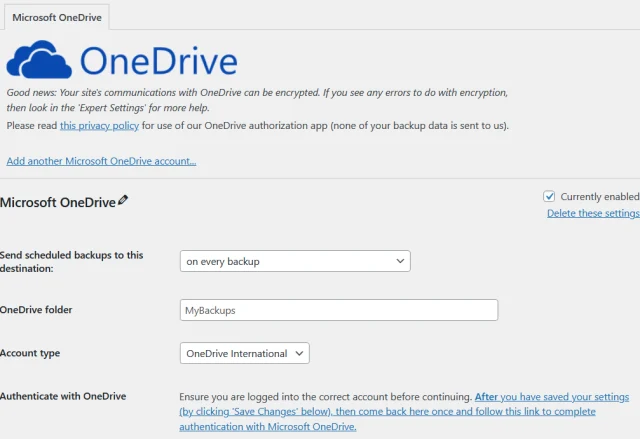
The page will reload and present a page authentication box. Click the link in the box to continue. You will then be presented with the option to select which Microsoft account you would like to use.
After you’ve selected the account you will be asked if you would like to allow the UpdraftPlus app to access your account. Click ‘Yes’. The following screen will present a ‘Complete setup’ button, click the button.
That’s it! Your UpdraftPlus backups are now connected to your Microsoft OneDrive storage.