How to set clipboard permissions in different browsers
Giving your browser permission to access the clipboard makes it easy for you to copy the information that you need to connect to UpdraftCentral. Enabling this feature will save you time; instead of manually copying the generated connection key, you’ll see an icon that will copy it for you in one click. Use this guide to set up your browser correctly. Simply select your browser from the list below, and follow the instructions:
Chrome
- Open Chrome browser settings here
- Select Security & Privacy > Site Settings > Permissions > Clipboard
- Select Allow
Edge
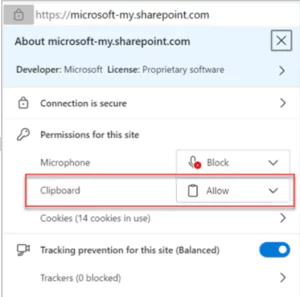
- Select the lock icon in the address bar
- Change the Permissions for this site > Clipboard setting to Allow
Firefox
- Open Firefox Browser
- In the address bar, type ‘about:config’ and search
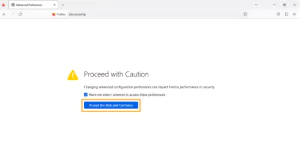
- A page will appear with the option ‘Accept the Risk and Continue’
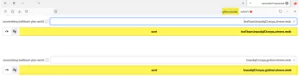
- For the following two Parameters change the preferences as True:
- dom.events.asyncClipboard.readText
- dom.events.testing.asyncClipboard
If you’re struggling to implement these steps, then as a Premium user, you can reach out for ticketed support. Free users can seek support via the WordPress forum.