How to manage themes and plugins with UpdraftCentral
With UpdraftCentral you can manage all of your WordPress websites’ themes and plugins from one convenient location. In this FAQ, we’re specifically looking at theme and plugin management.
How does theme management work?
With UpdraftCentral, you can choose individual themes to install and activate on your site. You can also bulk select themes to update or delete.
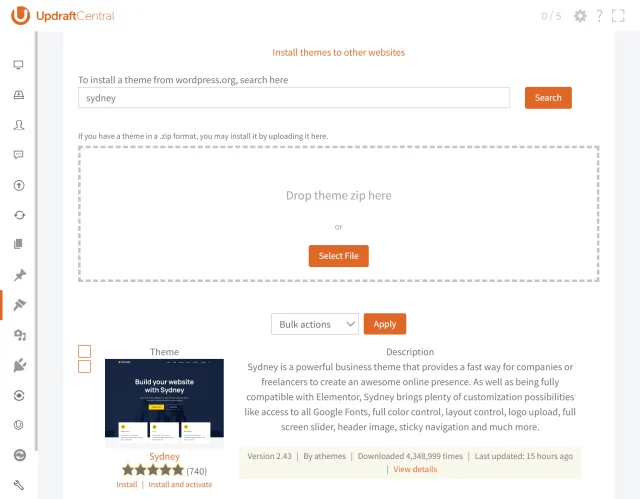
How do I install and activate a theme?
- Click Themes on the left hand side menu
- Click Install Themes next to your chosen site
- Type the name of the theme into the search box
- Click the Search button
- Click the Install and activate link
How do I update or delete a theme?
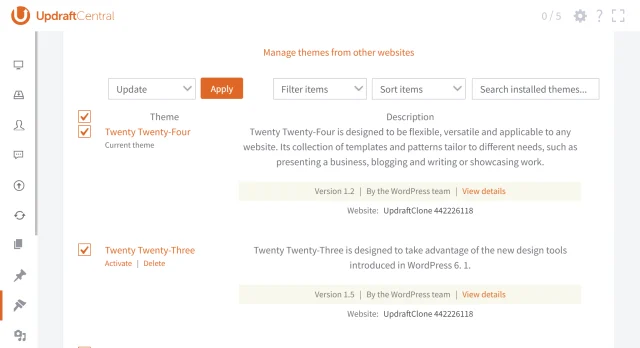
- Click Themes on the left hand side menu
- Click Manage Themes next to your chosen site
- Select the themes you want to update or delete
- Click the Bulk Actions dropdown box
- Select Update or Delete
- Click Apply
How does plugin management work?
With UpdraftCentral, you can choose individual plugins to install and activate on your site. You can also bulk select plugins to activate, deactivate, update or delete.
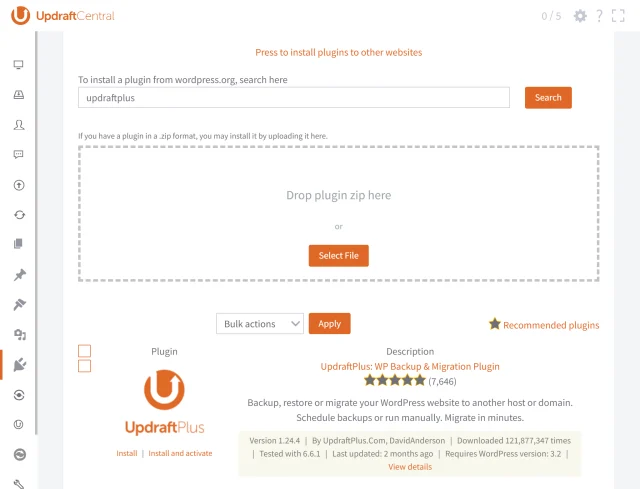
How do I install and activate a plugin?
- Click Plugins on the left hand side menu
- Click Install Plugins next to your chosen site
- Type the name of the plugin into the search box
- Click the Install and activate link
How do I activate, deactivate, delete or update a plugin?
- Click Plugins on the left hand side menu
- Click Manage Plugins next to your chosen site
- Select the plugins you want to activate, deactivate, update or delete
- Click the Bulk Actions dropdown box
- Select Activate, Deactivate, Delete or Update
- Click Apply