How to install UpdraftCentral
Installing UpdraftCentral Cloud
Getting started with UpdraftCentral Cloud is very easy. All it takes is just four steps:
- Create a TeamUpdraft account if you don’t already have one.
- You’ll need to install and activate the UpdraftPlus free or premium plugin on the sites you want to manage via UpdraftCentral.
- Once activated, click settings on the UpdraftPlus navbar menu or plugin list as shown below.
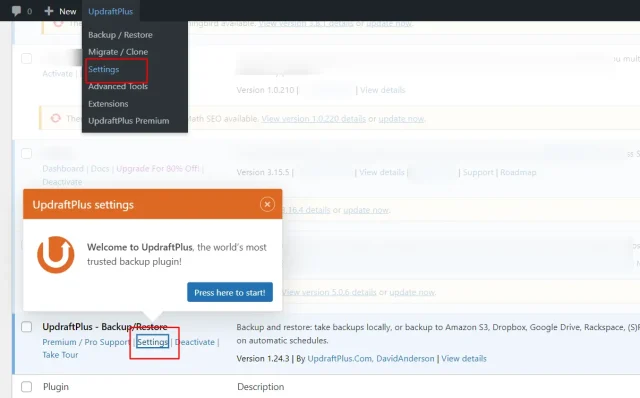
4. On the Settings tab, scroll to the bottom and click the Connect this site to UpdraftCentral button. Fill the popup form with your account details, check the consent box and proceed to connect as shown below.
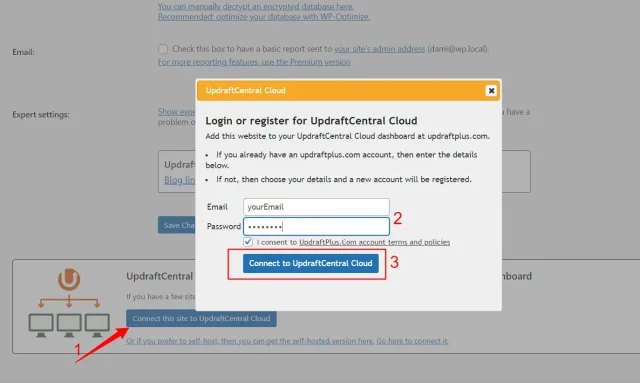
Once connected, you can now manage this site from your UpdraftCentral dashboard.
Install UpdraftCentral self-hosted
To install UpdraftCentral self-hosted on servers you control, follow the guidance shown here:
- Install UpdraftCentral self-hosted (free or premium) on your main site (where you will be managing other sites from).
- Next, create a new page under Pages >> Add new page, and name it as you wish. In this page, enter the shortcode below and save:
[updraft_central]
Visiting this newly created page will now display your UpdraftCentral dashboard. By default, only an admin user will be able to access this page. If you want to grant other user roles access, use this shortcode instead:
[updraft_central require_role="administrator,editor"]
With your dashboard ready, next step is to connect sites to be managed. To do this, start by:
- Visit the websites you want to manage and install Updraftplus.
- Next go to the Updraftplus Advanced tools tab and click on UpdraftCentral as shown below.
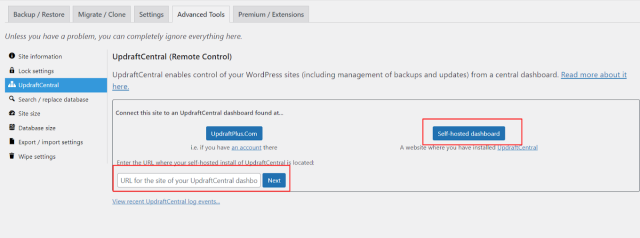
3. In the revealed section, click on the Self-hosted dashboard button and input the URL of your UpdraftCentral dashboard in the provided field as shown above. Click Next, and then Create. Copy the generated key.
4. Go back to your self-hosted UpdraftCentral dashboard and add a site by clicking the “plus” icon – see image below. Paste the copied key in the field provided by the pop-up box, and finally hit the Add Website button.
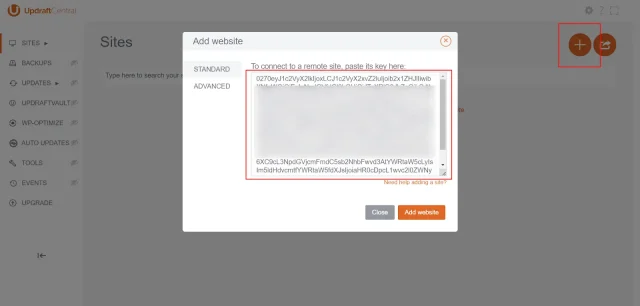
5. Repeat these steps for all the websites you want to manage.
Now you can start adding sites to your UpdraftCentral dashboard and manage them from one central location.
For the best experience, upgrade to UpdraftCentral Premium which lets you manage plugins, themes, users, comments and more from your dashboard.